Documentation
Your Ledger, your way.
Set up a private expense dashboard connected to your own Notion workspace and hosted on infrastructure you control.
01
Fork the repository
Start by creating your own copy. Open the repository, select Fork, and choose your GitHub account. You will deploy and customize your fork, not the original project.
Open the Ledger repository02
Duplicate the Notion template
Open the ready-made Ledger database template, select Duplicate, and choose your own Notion workspace.
Duplicate the Ledger Notion template03
Create a Notion integration
Open Notion's integrations page and create a new internal integration in the same workspace where you duplicated the database.
Create a Notion integration04
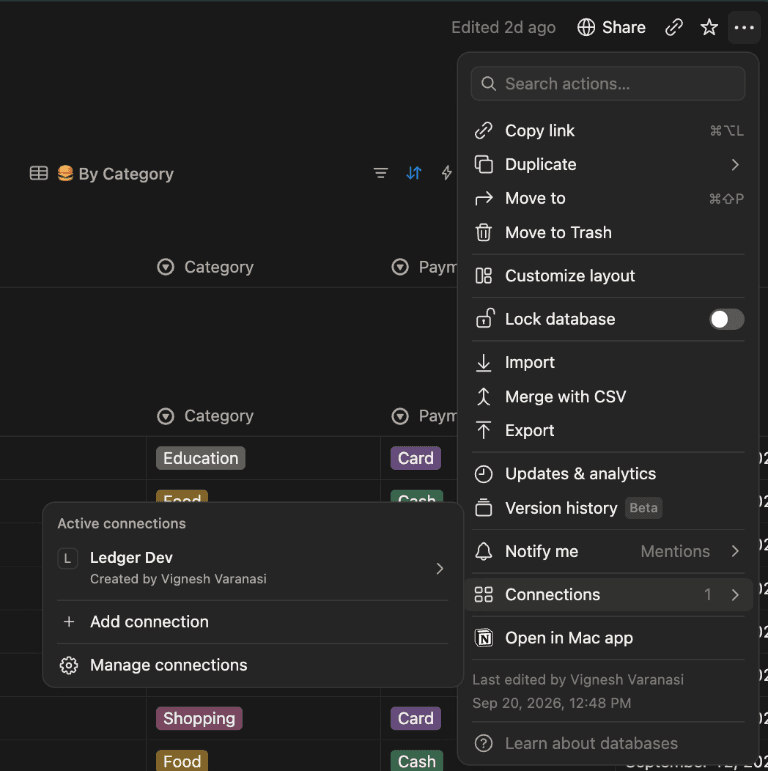
Connect the integration to your database
Open your duplicated database. Select the ••• menu in the top-right corner, choose Connections, and select the integration you created.
05
Copy your Notion connection details
Copy the integration token from Notion and the ID of your duplicated database. You will add both values to .env.local in the next step.
06
Install and configure
Clone your fork locally, install dependencies, and create your environment file.
git clone https://github.com/<your-username>/ledger.git
cd ledger
pnpm install
cp .env.example .env.local
Add your own values to .env.local:
NOTION_TOKEN=...
NOTION_DB_ID=...
SITE_PASSWORD=choose-a-strong-password
AUTH_SECRET=generate-a-long-random-value
LOG_TOKEN=generate-a-long-random-value
IS_DEMO=false
IS_AI_ENABLED=true
OPENAI_API_KEY=your-openai-api-key
AI_MODEL=gpt-4.1-mini
07
Run it locally
Start the development server and open the local address in your browser.
pnpm dev
# Open http://localhost:3000
08
Deploy your Ledger
Deploy the fork to the hosting platform of your choice. Add the same environment variables in its project settings, then build and start the application using the commands supported by that platform.
IS_DEMO=false, use a strong SITE_PASSWORD, and set IS_AI_ENABLED=true only when your OpenAI key is configured.